ВУЗ: Не указан
Категория: Не указан
Дисциплина: Не указана
Добавлен: 17.04.2021
Просмотров: 3724
Скачиваний: 3
Introduction to Python for Science, Release 0.9.23
Prompt
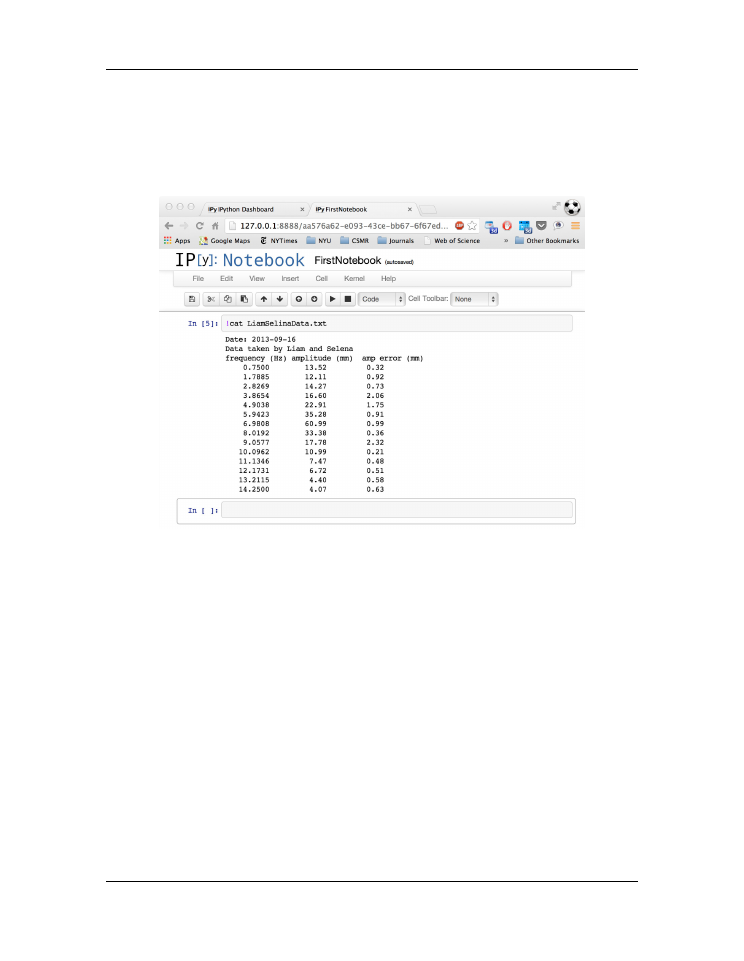
(PC), you could write the contents of any text file using the command
cat
filename
(Mac) or
type
filename
(PC). You can execute the same operation from the
IPython prompt using the Unix (Mac) or DOS (PC) command preceded by an exclamation
point, as described in the section on
Figure B.7: Displaying a text file from disk
B.6 Editing and rerunning a notebook
In working with an IPython notebook, you may find that you want to move some cells
around, or delete some cells, or simply change some cells. All of these tasks are possible.
You can cut and paste cells, as in a normal document editor, using the
Edit
menu. You
can also freely edit cells and re-execute them by pressing
Shift-Enter
. Sometimes
you may find that you would like to re-execute the entire notebook afresh. You can do this
by going to the
Kernel
menu and selecting
Restart
. A warning message will appear
asking you if you really want to restart. Answer in the affirmative. Then open the
Cell
menu and select
Run All
, which will re-execute the notebook starting with the first cell.
You will have to re-enter any screen input requested by the notebook scripts.
190
Appendix B. IPython Notebooks

Introduction to Python for Science, Release 0.9.23
B.7 Quitting an IPython notebook
It goes almost without saying that before quitting an IPython notebook, you should make
sure you have saved the notebook by pressing the
Save and Checkpoint
item in the
File
menu or its icon in the Toolbar.
When you are ready to quit working with a notebook, click on the
Close and halt
item in the
File
menu. Your notebook browser tab will close and you will return to the
IPython Notebook Dashboard. Just close the IPython Notebook Dashboard tab in your
browser to end the session.
Finally, return to the
Terminal
or
Command Prompt
application, hold down the
control
key and press
c
twice in rapid succession. This stops the IPython Notebook
session. You should see the normal system prompt. You can then close the
Terminal
(Mac) or
Command Prompt
(PC) session if you wish.
B.8 Working with an existing IPython notebook
To work with an existing IPython notebook, open the
Terminal
(Mac) or
Command
Prompt
(PC) application and navigate to the directory in which the notebook you want
to work with resides. Recall that IPython notebooks have the
.ipynb
extension. Launch
the IPython Notebook Dashboard as you did previously by issuing the command
ipython notebook --pylab inline
This will open the IPython Notebook Dashboard in your web browser, where you should
see a list of all the IPython notebooks in that directory (folder). Click on the name of the
notebook you want to open. It will appear in a new tab on your web browser as before.
Note that while all the input and output from the previous saved session is present, none
of it has been run. That means that none of the variables or other objects has been defined
in this new session. To initialize all the objects in the file, you must rerun the file. To
rerun the file, press the
Cell
menu and select
Run All
, which will re-execute all the
cells. You will have to re-enter any screen input requested by the notebook scripts. Now
you are ready to pick up where you left off the last time.
B.7. Quitting an IPython notebook
191


Introduction to Python for Science, Release 0.9.23
192
Appendix B. IPython Notebooks

APPENDIX
C
PYTHON RESOURCES
This text provides an introduction to Python for science and engineering applications but
is hardly exhaustive. There are many other resources that you will want to tap. Here I
point out several that you may find useful.
C.1 Web resources
The best web resource for Python is a good search engine like Google. Nevertheless, I list
a few web sites here that you might find useful. I have successfully resisted any attempt
to be exhaustive so that the list is actually useful. Nevertheless, if you find a really cool
site that you think should be on this list, please let me know.
The official Python web site. I almost never look
here.
http://docs.python.org/2/reference/
Sometimes I look here for detailed in-
formation about Python 2, which is the version used in this manual.
Someday, when all the most useful packages are available for Python 3,
we will switch to Python 3 and use
http://docs.python.org/3/reference/
instead.
http://docs.scipy.org/doc/numpy/reference/
I usually start here when I
need information about NumPy. It has links to just about all the NumPy
documentation I need. By the way, I say “num-pee”, which rhymes with
“bumpy”—a lot of people say “num-pie”, which doesn’t sound like En-
glish to me.
http://docs.scipy.org/doc/scipy/reference/
I start here when I need infor-
mation about SciPy, its various packages and their functions. I say
193

Introduction to Python for Science, Release 0.9.23
“psy-pi” for SciPy, like everyone else. Who says I have to be con-
sistent? (see Emerson)
http://matplotlib.org/api/pyplot_summary.html
The
Plotting Commands
Summary
page for MatPlotLib. It has a search feature and links to all the
MatPlotLib documentation, which I use a lot. You can go the the main
MatPlotLib page,
, but frankly, it’s less useful. The
site
http://www.loria.fr/~rougier/teaching/matplotlib/
is also useful for
learning some MatPlotLib tricks.
I go to this page mostly to learn about IPython Note-
book (
http://ipython.org/notebook.html
) but it’s also useful if you need
information about the IPython interpreter, especially if you want to find
out more about IPython magic commands.
I get my latest version of Python and all the
packages I need for scientific computing here. One stop shopping and
everything is free for academic users. They offer three distributions:
Express, Basic, and Professional. Express is free to all users and con-
tains all the Python libraries, NumPy, MatPlotlib, SciPy,
etc
, that are
described in this manual. Basic includes all the packages Enthought
supports, which is likely to be everything you will ever need. Profes-
sional adds support services. Basic is free to academic users. One nice
feature of Canopy is its package manager, which makes it child’s play
to update or add Python packages. This is a very nice feature, especially
for beginners. Canopy displaces the older Enthought EPD packages.
https://code.google.com/p/spyderlib/
Get the latest version of Spyder, the
alternative IDE to Enthought’s Canopy. Sypder is completely open
source and has a number of nice features, like introspection, not cur-
rently available in Canopy.
Its package manager isn’t as nice as
Canopy’s, but it’s pretty good. Spyder is very popular and can be in-
stalled easily on all platforms.
http://www.scipy.org/Mailing_Lists
Go here if you want to sign up for a
mailing list for NumPy or SciPy, or if you want to report a bug. Mailing
lists give you access to a community of developers and users that can
often provide expert help. Just remember to be polite and respectful of
those helping you and also to those posting questions.
https://lists.sourceforge.net/lists/listinfo/matplotlib-users
The
mailing
list for MatPlotLib. See paragraph immediately above.
194
Appendix C. Python Resources