ВУЗ: Не указан
Категория: Не указан
Дисциплина: Не указана
Добавлен: 17.04.2021
Просмотров: 3706
Скачиваний: 3
Introduction to Python for Science, Release 0.9.23
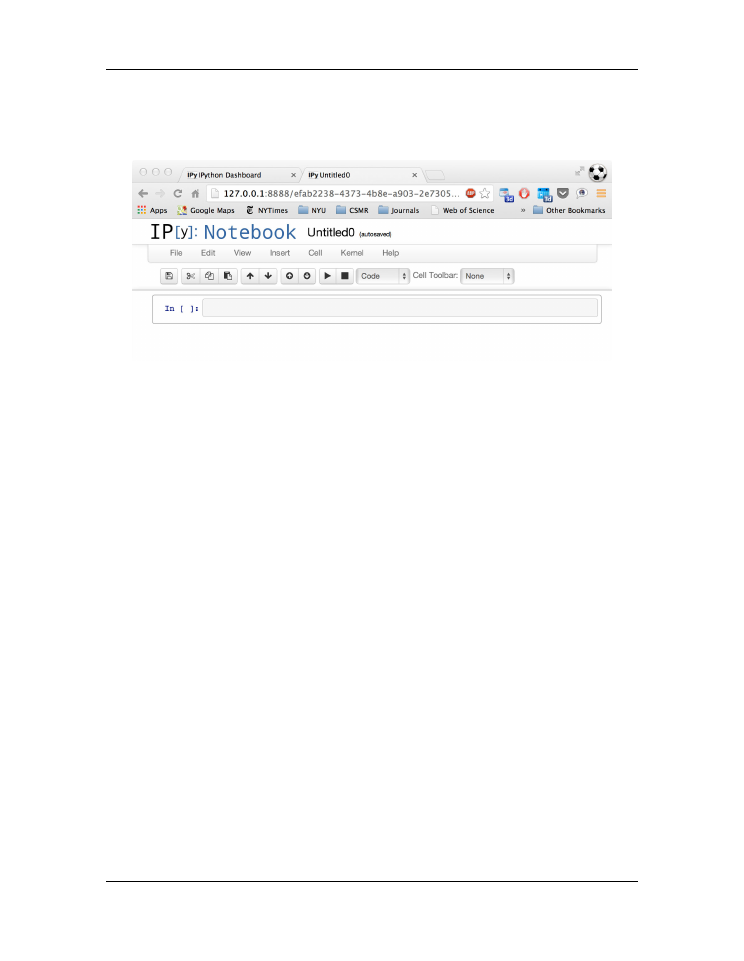
IPython notebooks in that directory will appear in a list on the IPython Notebook Dash-
board. Clicking on one of them will launch that notebook.
Figure B.2: IPython Notebook
B.3 Using an IPython Notebook
When you open a new IPython Notebook, an IPython interactive cell with the prompt
In[ ]:
to the left, appears. You can type code into this cell just as you would in the
IPython shell of the
. For example, typing
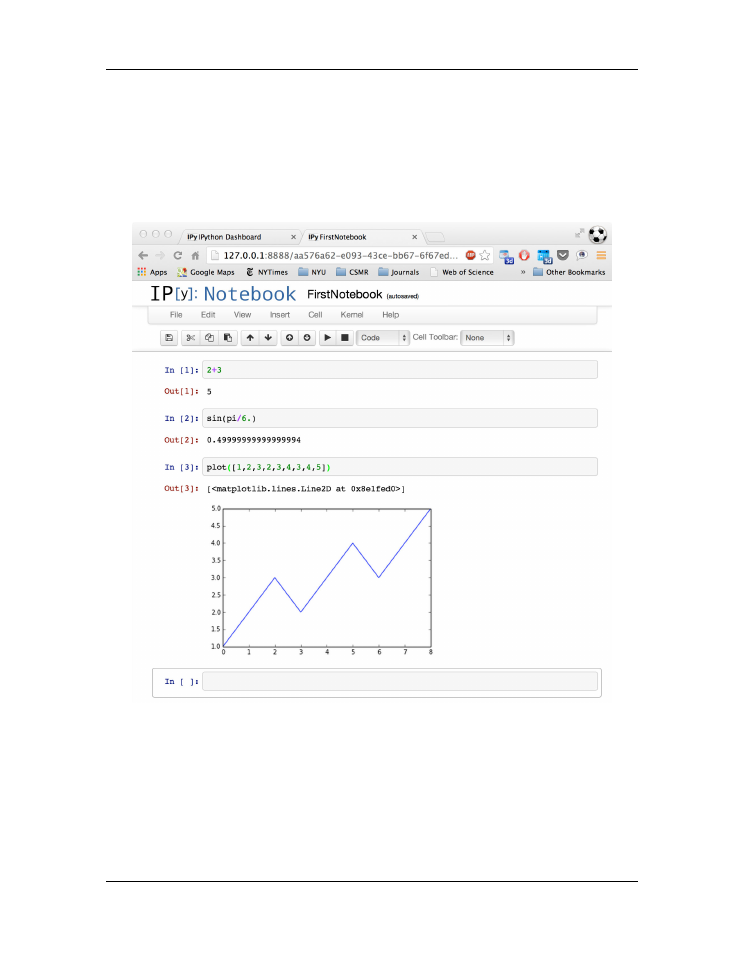
2+3
into the cell and pressing
Shift-Enter
(or
Shift-Return
) to execute the cell yields the expected result. Try
it out.
Below the result a new IPython interactive cell appears ready for your next entry. Be-
cause we launched IPython Notebook with the
--pylab
switch, NumPy and MatPlotLib
are already loaded so we do not need the
np.
or
plt.
prefixes to access the func-
tions in the NumPy and MatPlotLib libraries. Thus, typing
sin(pi/6.)
and pressing
Shift-Enter
produces the expected result (to nearly 1 part in
10
16
).
You can also create plots in an IPython notebook.
For example,
typing
plot([1,2,3,2,3,4,3,4,5])
and pressing
Shift-Enter
produces the same
plot shown in
. The plot is produced “in line” and not in a sepa-
rate window, because we used the
inline
switch when we launched IPython Notebook.
If you have followed along, your IPython notebook should look something like that shown
in the figure
Be sure to press the
Save and Checkpoint
icon at the far left near the top of the
IPython Notebook window from time to time to
save your work
.
B.3. Using an IPython Notebook
185
Introduction to Python for Science, Release 0.9.23
Figure B.3: IPython Notebook demo
186
Appendix B. IPython Notebooks
Introduction to Python for Science, Release 0.9.23
B.4 Running programs in an IPython Notebook
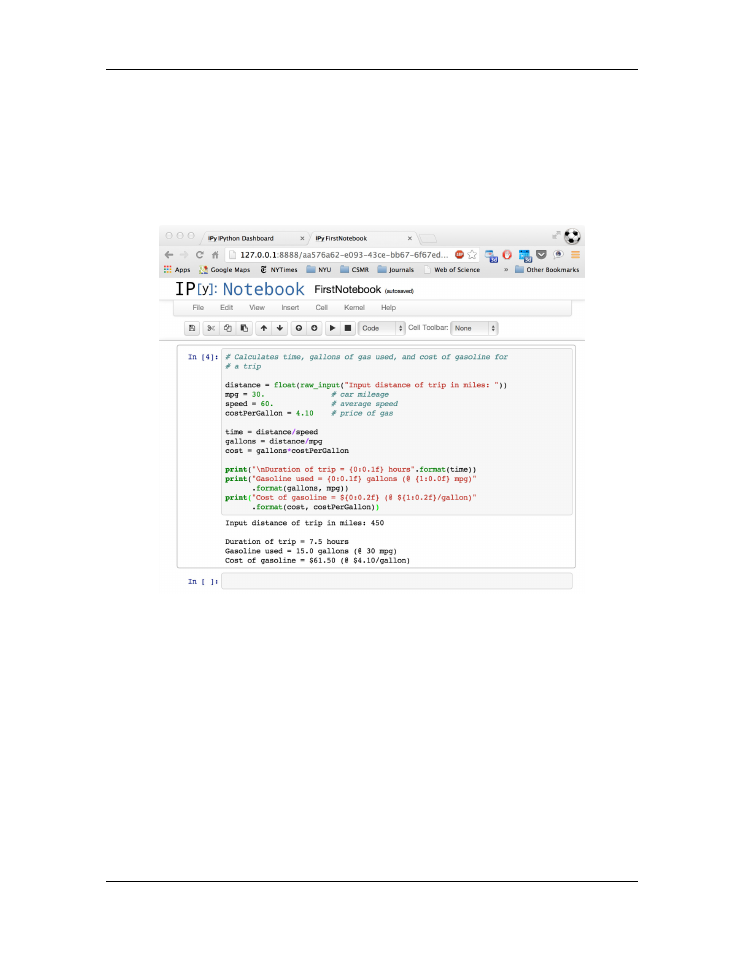
You can also run programs in an IPython notebook. As an example, we run the program
introduced in the section on
. The program is input into a single notebook
cell and then executed by pressing
Shift-Enter
.
Figure B.4: Running a program
In this example, the program requests input from the user: the distance of the trip. The
program runs up to the point where it needs input from the user, and then pauses until the
user responds and presses the
Enter
or
Return
key. The program then completes its
execution. Thus the IPython notebook provides a complete log of the session.
B.5 Annotating an IPython Notebook
An IPython notebook will be more easily comprehended if it includes annotations of the
session. In addition to logging the inputs and outputs of computations, IPython Notebook
B.4. Running programs in an IPython Notebook
187
Introduction to Python for Science, Release 0.9.23
allows the user to embed headings, explanatory notes, mathematics, and images.
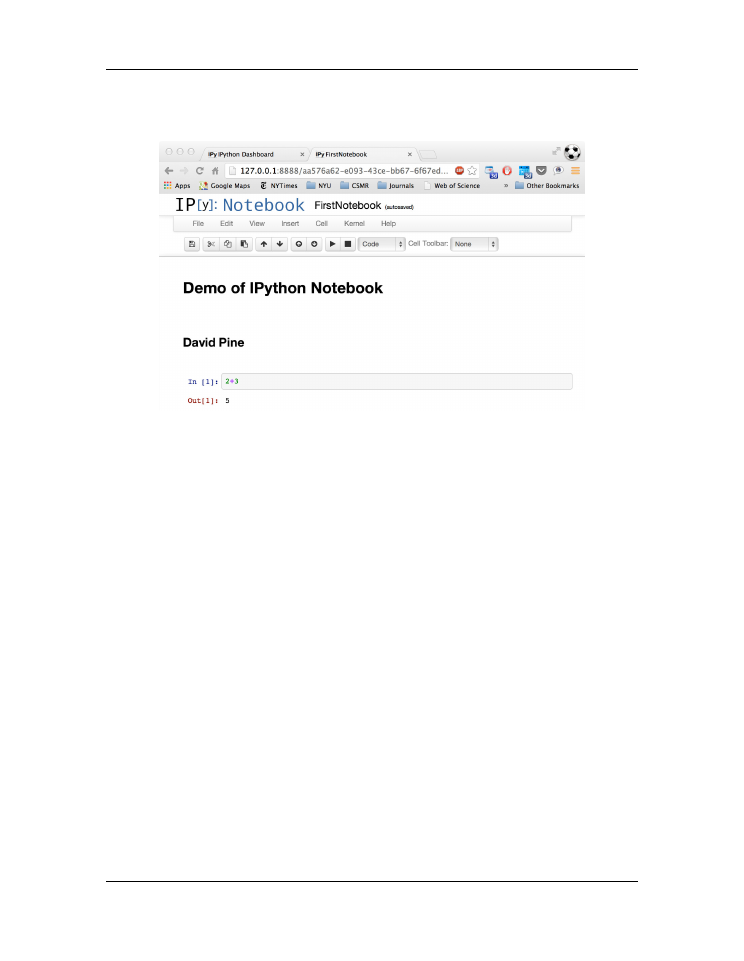
Figure B.5: Annotating a notebook
Suppose, for example, that we want to have a title at the top of the IPython notebook we
have been working with, and we want to include the name of the author of the session.
To do this, we scroll the IPython notebook back up to the top and place the cursor and
click in the very first input cell, the one that contained
2+3
. We then open the
Insert
menu near the top center of the window and click on
Insert Cell Above
, which
opens up a new input cell above the first cell. Next, we click on the box in the Toolbar
that says
Code
. A list of cell types appears:
Code
(currently checked),
Markdown
,
Raw Text
,
Heading 1
,
Heading 2
, ...,
Heading 6
. Select
Heading 1
; im-
mediately the
In [ ]:
prompt disappears, indicating that this box is no longer meant
for inputing and executing Python code. Type “
Demo of IPython Notebook
” and
press
Shift-Enter
(or
Shift-Return
). A heading in large print appears before the
first IPython code cell. Place the cursor back in the first Ipython code cell (
2+3
). Once
again, select the
Insert
menu and click on
Insert Cell Above
. Again, click on
the Toolbar that says
Code
, but this time select
Heading 2
. Type your name into the
newly created cell and press
Shift-Enter
. Your name is printed in the cell in slightly
smaller print than for the previous case.
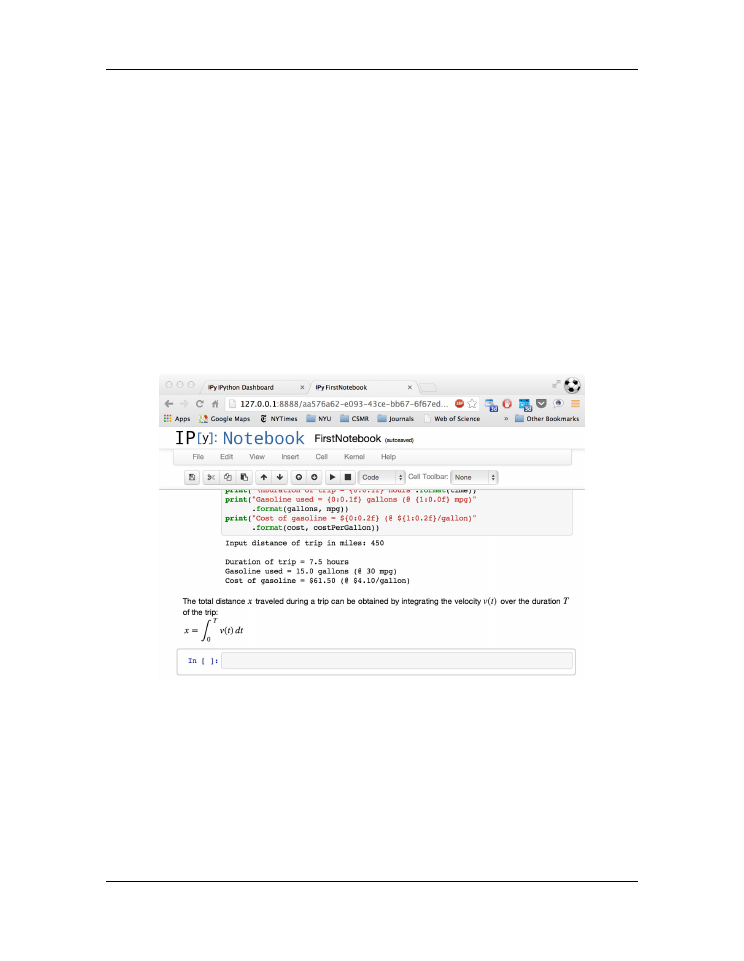
You can also write comments, including mathematical expressions, into an IPython
Notebook cell.
Let’s include a comment after the program we ran that calculated
the cost of gasoline for a road trip.
First we place the cursor in the open for-
mula cell below program we ran and then click on the box in the Toolbar that says
Code
and change it to
Markdown
. Returning to the cell, we enter the text of our
188
Appendix B. IPython Notebooks
Introduction to Python for Science, Release 0.9.23
comment.
We can enter any text we wish, including mathematical expressions us-
ing the markup language Latex.
(If you do not already know Latex, you can get
a brief introduction at these sites:
http://en.wikibooks.org/wiki/LaTeX/Mathematics
or
ftp://ftp.ams.org/pub/tex/doc/amsmath/short-math-guide.pdf
.) Here we enter the follow-
ing text:
The total distance $x$ traveled during a trip can be
obtained by integrating the velocity $v(t)$ over the
duration $T$ of the trip:
\begin{align}
x = \int_0^T v(t)\, dt
\end{align}
After entering the text, pressing
Shift-Enter
yields the result shown in
Figure B.6: Annotation using a Markdown cell
The
$
symbol brackets inline mathematical expressions in Latex,
while the
\begin{align}
and
\end{align}
expressions bracket displayed expressions. You
only need to use Latex if you want to have fancy mathematical expressions in your notes.
Otherwise, they are not necessary.
Suppose you were importing a data (
.txt
) file from your hard disk and you wanted to
print it out in one of the notebook cells. If you were in the
Terminal
(Mac) or
Command
B.5. Annotating an IPython Notebook
189