ВУЗ: Не указан
Категория: Не указан
Дисциплина: Не указана
Добавлен: 17.04.2021
Просмотров: 1366
Скачиваний: 2
11
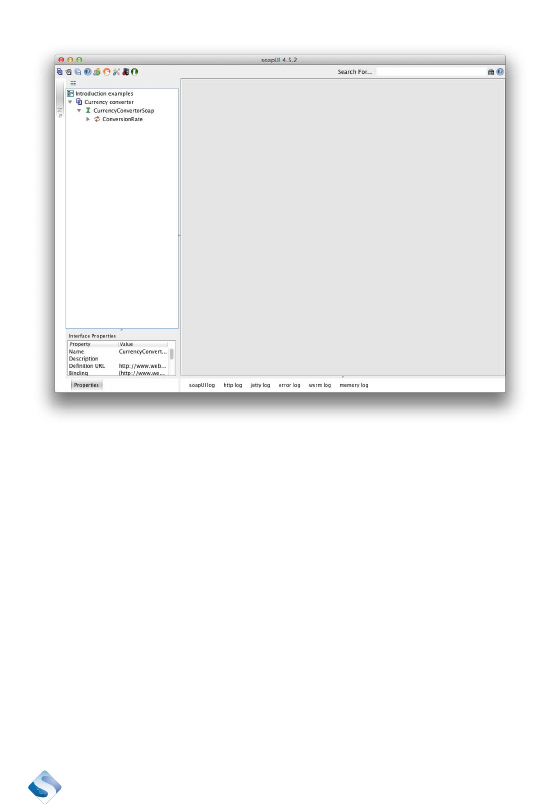
Let’s explore the remaining service. Expanding the tree to the left in
the project explorer reveals four things: the project name, “Currency
converter,” below it the name of the interface, “CurrencyConverterSoap,”
below it, the method name, “ConversionRate,” and finally, a sample
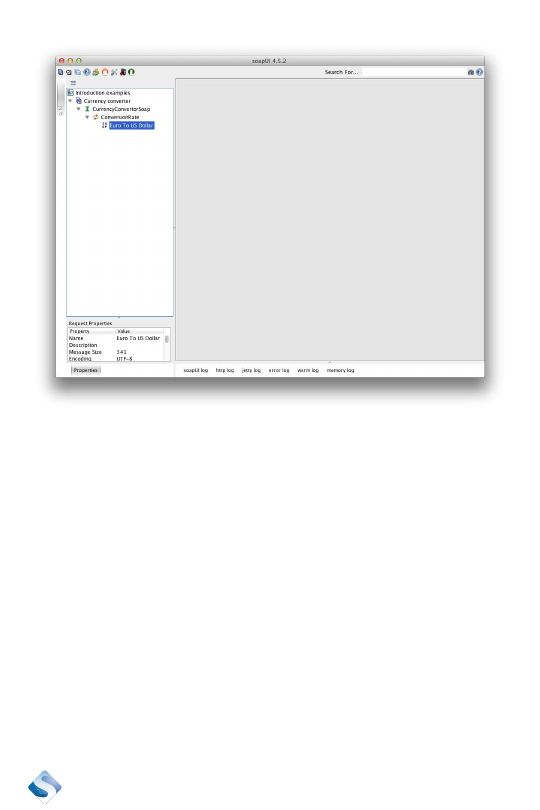
request to the service, called “Request 1.” “Request 1” is a name that
SoapUI has generated for us. We want to change it to a name that is
more descriptive. I chose “Euro To US Dollar.” Right click on “Request 1”
and set the new name.
12
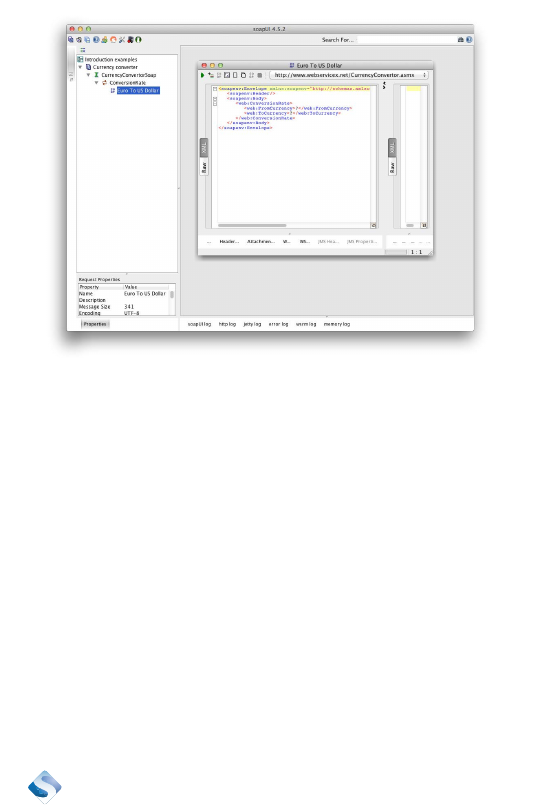
Double click on the “Euro To US Dollar” request. A sample request will
show up in the desktop. The content should look like this:
<soapenv:Envelope xmlns:soapenv=”http://schemas.xmlsoap.org/
soap/envelope/” xmlns:web=”http://www.webserviceX.NET/”>
<soapenv:Header/>
<soapenv:Body>
<web:ConversionRate>
<web:FromCurrency>?</web:FromCurrency>
<web:ToCurrency>?</web:ToCurrency>
</web:ConversionRate>
</soapenv:Body>
</soapenv:Envelope>
13
This is an XML message that will be sent to the server where the API
runs. Sending it as it is will result in an error. We need to change two
things before we can send it and expect something useful in return.
The two question marks are placeholders for two parameters that must
be set properly. The names of the parameters are “FromCurrency” and
“ToCurrency.” Replace the question mark for “FromCurrency” with the
symbol for Euro, EUR. Then replace the question mark for “ToCurrency”
with the symbol for US Dollar, USD. The result should look like this:
<soapenv:Envelope xmlns:soapenv=”http://schemas.xmlsoap.org/
soap/envelope/” xmlns:web=”http://www.webserviceX.NET/”>
<soapenv:Header/>
<soapenv:Body>
<web:ConversionRate>
<web:FromCurrency>EUR</web:FromCurrency>
<web:ToCurrency>USD</web:ToCurrency>
</web:ConversionRate>
</soapenv:Body>
</soapenv:Envelope>

14
We should get the conversion rate between Euro and US Dollar when
we send this to the server. The response will be a similar XML docu-
ment, where we will locate an element that contains the answer. It will
look like this:
<soap:Envelope xmlns:soap=”http://schemas.xmlsoap.org/soap/
envelope/” xmlns:xsi=”http://www.w3.org/2001/XMLSchema-in-
stance” xmlns:xsd=”http://www.w3.org/2001/XMLSchema”>
<soap:Body>
<ConversionRateResponse xmlns=”http://www.webser-
viceX.NET/”>
<ConversionRateResult>1.318</ConversionRateRe-
sult>
</ConversionRateResponse>
</soap:Body>
</soap:Envelope>
The element “ConversionRateResult” contains the value 1.318, which
should be interpreted to mean that it will cost you 1.318 US Dollars to
get one Euro. I will add an assertion later that will verify this value. Add-
ing an assertion in this case may be a bit risky, as the exchange rate
between Euro and US Dollar isn’t fixed. But let’s ignore that problem for
now.
Add a test suite
The sample request we made earlier should be included in a test suite
that contains one or more test scenarios. Each scenario should also
contain one or more assertions. We will execute this test suite to do a
functional test of an API.
15
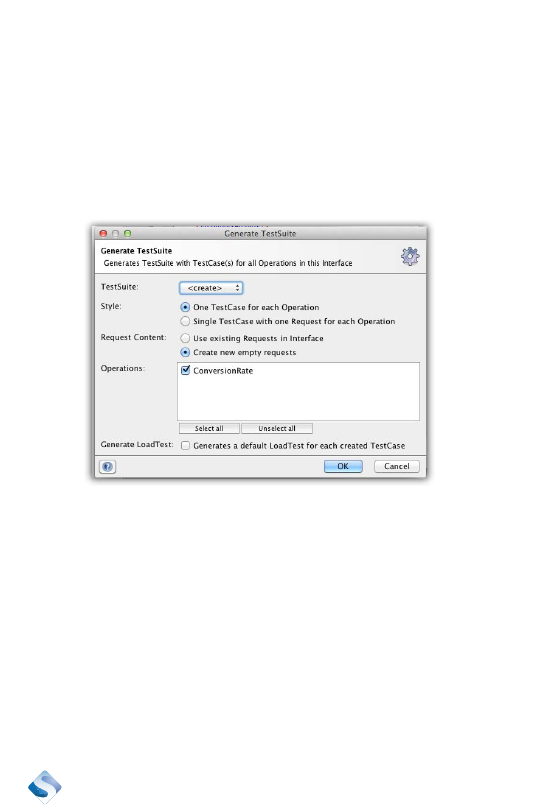
Let’s add the test suite.
¿
Right click on “CurrencyConverterSoap.”
¿
Click on “Generate TestSuite.”
¿
A dialog box will show up where you can customize the
generation. Leave the defaults as they are and click “OK” to
generate a test suite.
Call the test suite “Euro to Dollar TestSuite” and click “OK.”
A test suite is generated for us. It has been populated with one test
case. Let’s move on and have the test case do something useful.
Add a test
Expand the newly created test suite. A test case has been created for
us. Our next step is to tweak it so we can verify the conversion rate.
¿
Expand the tree until the test steps have been unfolded and the
test step “ConversionRate” is visible.
¿
Double click on the test step. A sample request should appear in
the request editor.