ВУЗ: Не указан
Категория: Не указан
Дисциплина: Не указана
Добавлен: 17.04.2021
Просмотров: 1369
Скачиваний: 2
16
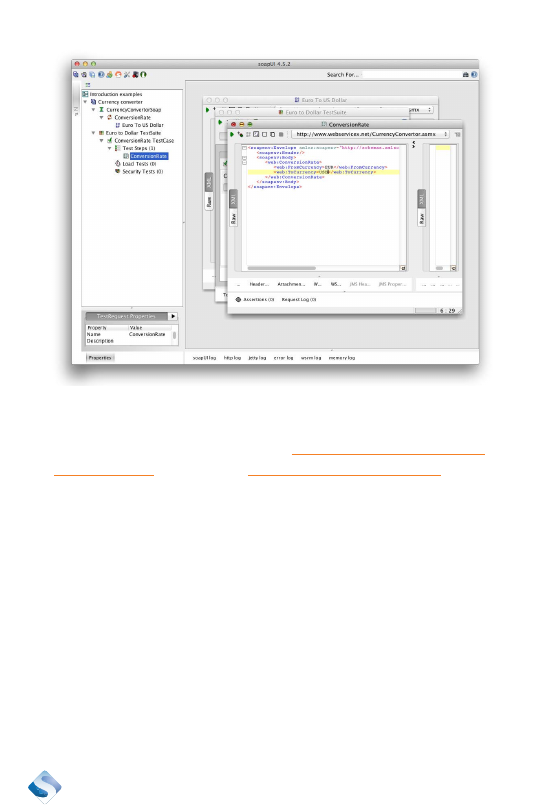
Replace the two question marks in the XML with EUR and USD. The
result should look like this:
<soapenv:Envelope xmlns:soapenv=”
” xmlns:web=”
”>
<soapenv:Header/>
<soapenv:Body>
<web:ConversionRate>
<web:FromCurrency>EUR</web:FromCurrency>
<web:ToCurrency>USD</web:ToCurrency>
</web:ConversionRate>
</soapenv:Body>
</soapenv:Envelope>
¿
The “web:FromCurrency” tag should contain EUR and the
“web:ToCurrency” should contain USD.
17
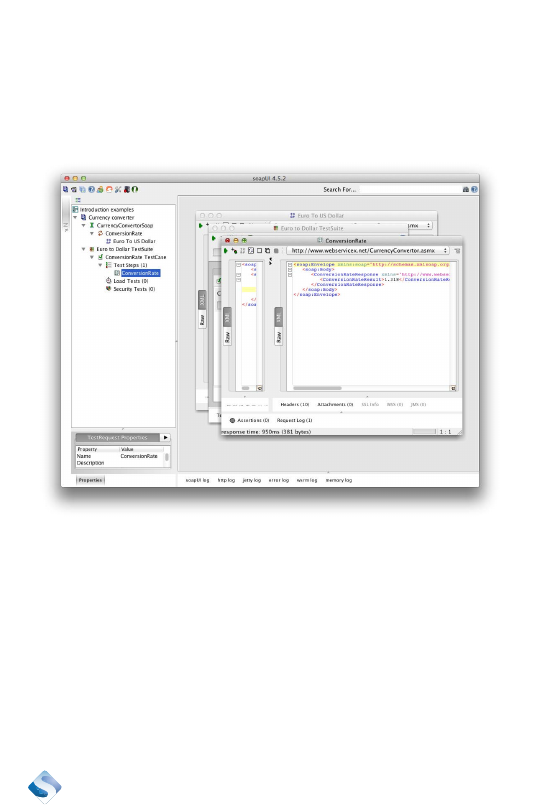
This is all we need to do to create our first test case. We can execute
this test case now.
The result after an execution will look similar to this:
Unfortunately, we will not get any indication if it failed or passed if we
execute it now. We need to add at least one assertion that will warn us if
there was a problem that failed this test. Let’s do this as the next step.
18
Add an assertion
Add our first assertion.
¿
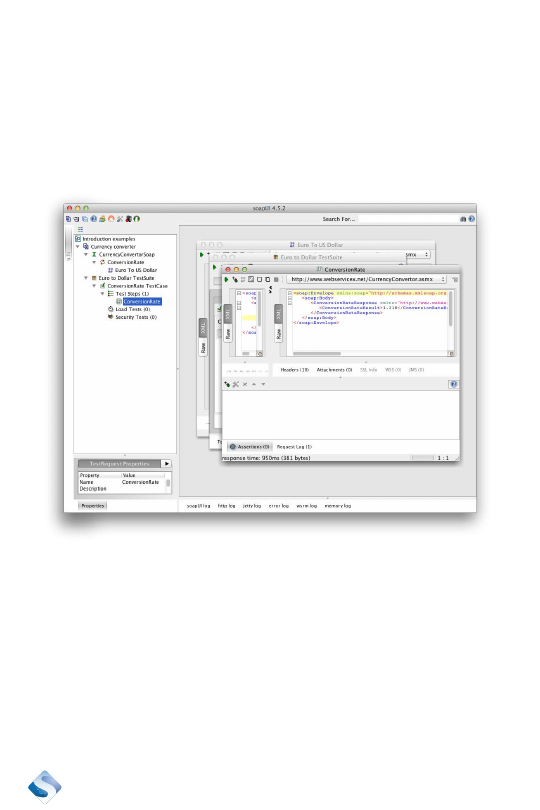
Click on the label “Assertions” at the bottom of the request
editor.
¿
This will expand the assertions editor. It is empty.
Click on the small +-sign at the top of the assertions editor.
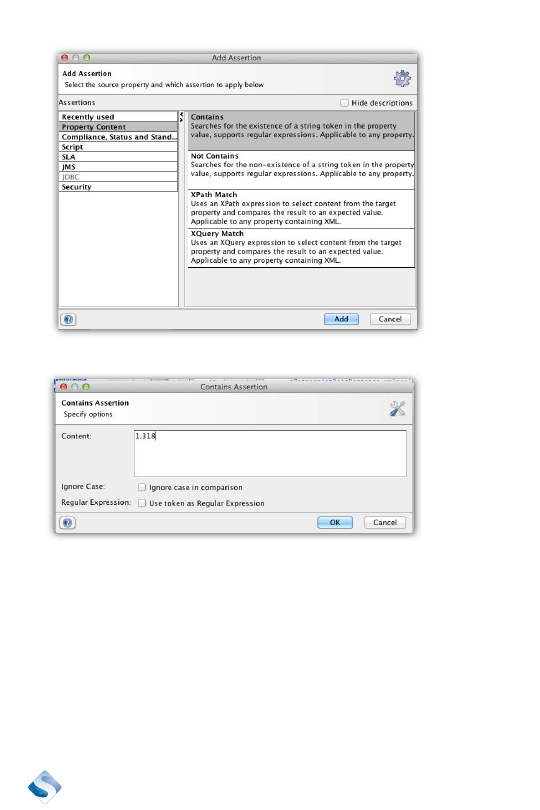
Select “Property Content assertions.” The first one in the list is a Con-
tains assertion. Let’s use that one. Click on the “Contains” box and then
click on “Add” to add it to the test case.
19
Add 1.318 in the next dialog box.
Click “OK” to add it.
We have one assertion to start with. We will probably want to add more
assertions later, but let’s start small and just have one. We will add more
moving parts when this first case has been verified. Hardcoding the
conversion rate between two currencies like this is brittle. We will have
to do something about that later, also.
20
Run the test
The first thing we want to do is to run a single test case.
¿
Click on the small, green arrow at the top left corner of the
request editor.
¿
This will send the request to the server. The assertion will be
green if the value 1.318 is available in the response.
Next step is to run the entire test suite. It doesn’t contain more than a
single test at the moment. The result should be exactly the same as run-
ning a single test.
Run the test suite
Executing the entire test suite can be done like this:
¿
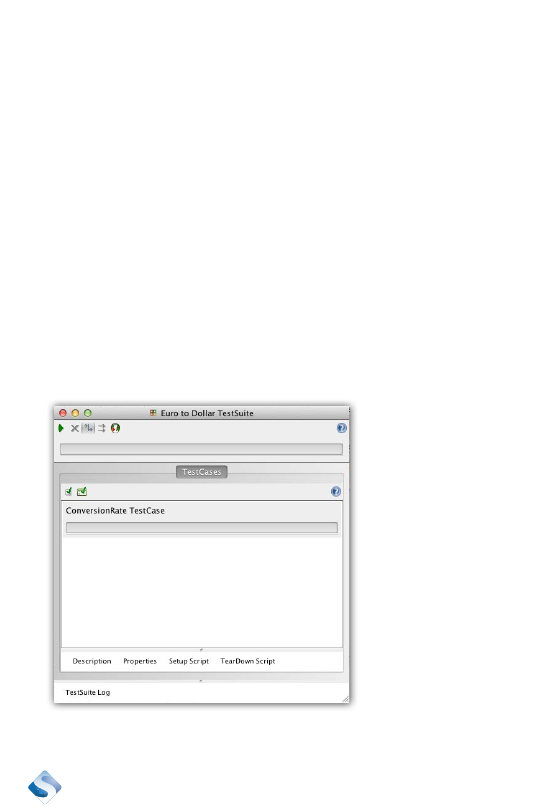
Double click on the test suite “Euro to Dollar TestSuite.”
¿
Click on the small, green arrow at the top of the test suite editor.
All test steps will be executed and they should be green. There is only
one in this case, but one is enough to verify the execution.