ВУЗ: Не указан
Категория: Не указан
Дисциплина: Не указана
Добавлен: 17.04.2021
Просмотров: 1370
Скачиваний: 2
21
Further exploration
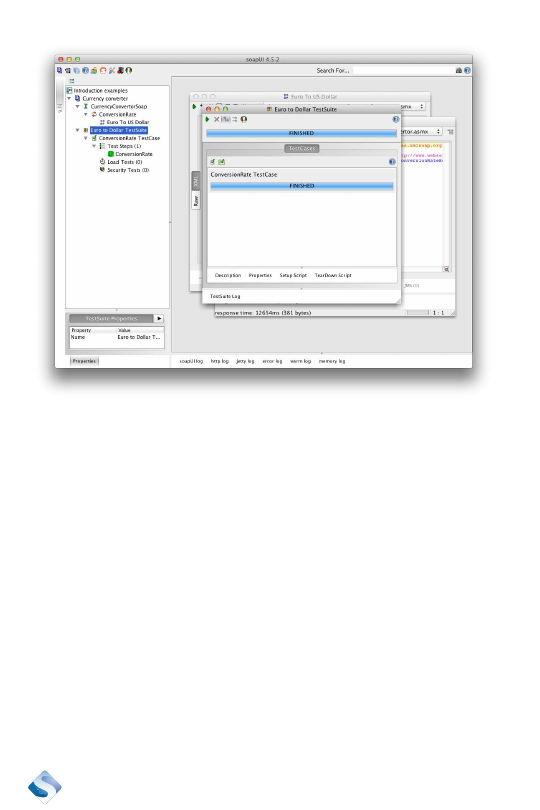
Now that you have created a test suite, it is time to add more test steps
to it or add more assertions to the step we just created. The basic infra-
structure is in place. Now it is just more of the same.
Create tests
Creating tests is mostly about adding proper assertions to a test case.
We have our test step that will verify the conversion rate between Euro
and US Dollar. The verification we added earlier is brittle. The conver-
sion rate between two currencies is seldom fixed. Other verifications
we can add are verifying if a response is received fast enough and thus
answer the question if the service we are testing is following a given
service level agreement, SLA.

22
Let’s add verifications to our test case and discover more about how to
verify the response.
Verify a range
It is easy to verify that an answer contains a value. This may be great if
you want to verify a value that is not expected to change. Some values
change. We have to create a test that can handle a range instead of a
fixed value. Suppose that we can assume that the response will contain
a value that is greater than something else. With this, we can verify a
range.
Let’s assume that the conversion rate between Euro and US Dollar is
larger than 1 and lower than 2. How could that be expressed?
We need to start with locating the element that contains the value.
When this is done, we need to compare the value with our assumption.
¿
Click on the label “Assertions” at the bottom of the request
editor.
¿
Click on the small +-sign at the top of the assertions editor.
¿
Select “Property Content.”

23
¿
Select “XPath match” and click “Add.”
¿
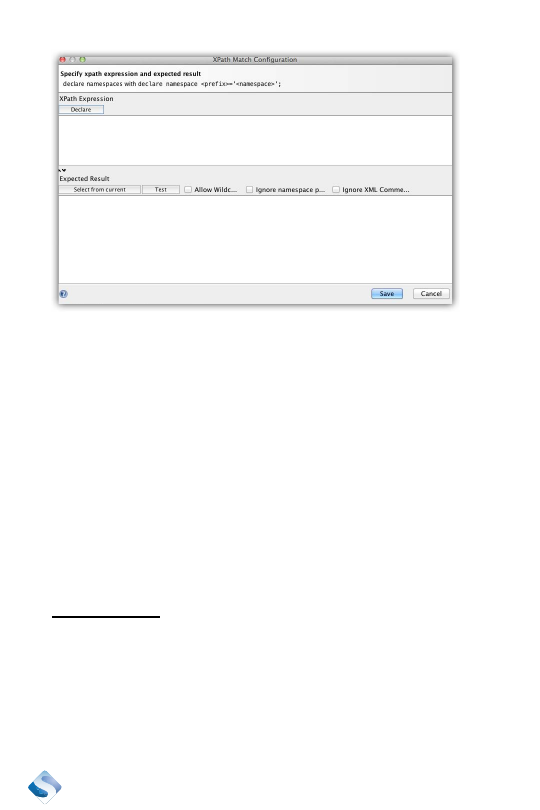
Click “Declare” in the XPath editor, SoapUI declared two name
spaces for you. They can be called anything. The two name
spaces that were declared are called soap and ns1.
¿
Rename ns1 to something more descriptive. I choose Web
since it is the same name space that is used in the request.
Web is perhaps not much more descriptive than ns1, but at least
it is not an abbreviation for Name Space 1.
¿
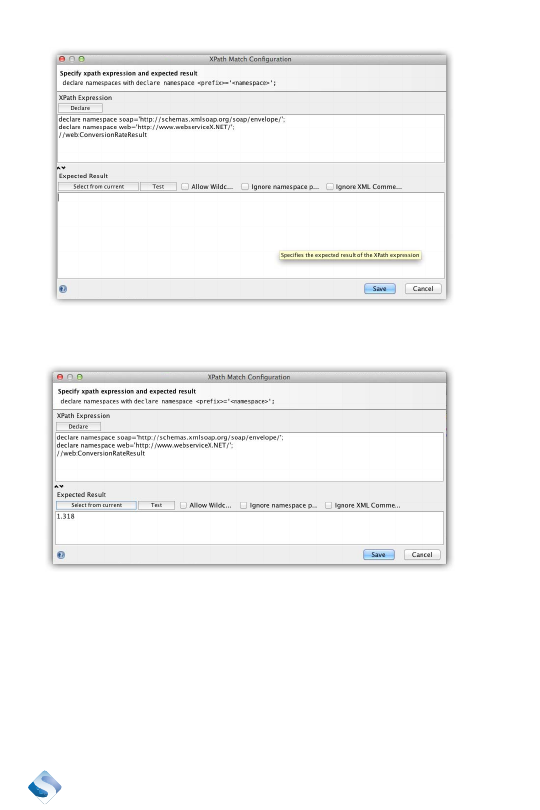
The next step is to add an XPath3 expression that will search
for the element that contains the conversion rate.
//Web:ConversionRateResult
3 http://www.w3schools.com/xpath/
24
¿
Verify that the syntax is correct by pressing the “Select from
current” button. You should get the value available in the
response. I got 1.318 when I tried.
¿
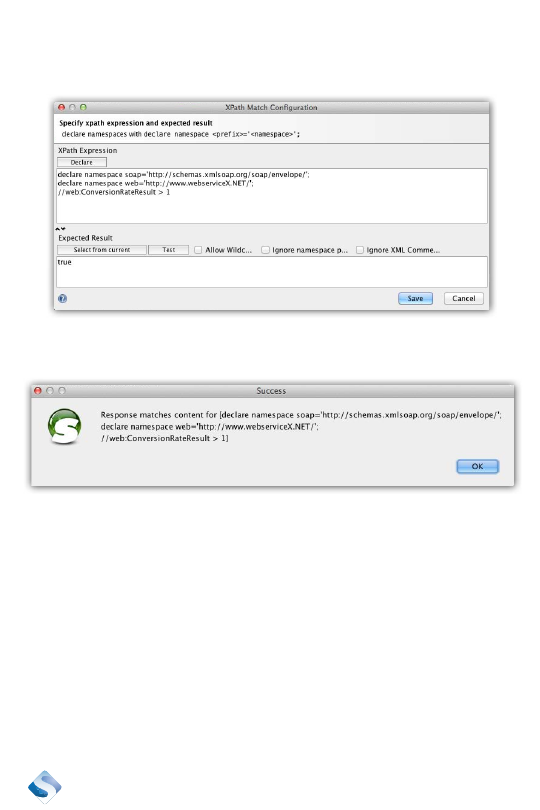
When we are able to locate the element, let’s continue with
verifying that it is larger than one. Rewrite the XPath expression
like this:
//Web:ConversionRateResult > 1
25
¿
Verify the result again by pressing “Select from current.” I got
the result true.
¿
Press the Test button to execute the test. I got a dialog box that
told me that the test was a success.
¿
Save the current verification by pressing “Save.”
To verify that the conversion rate is lower than 2, create a similar asser-
tion and change the XPath to
//Web:ConversionRateResult < 2
An easy way to do this is to clone the XPath assertion. Right click on it,
select “Clone” and do the appropriate changes.