ВУЗ: Не указан
Категория: Не указан
Дисциплина: Не указана
Добавлен: 17.04.2021
Просмотров: 3754
Скачиваний: 3

CHAPTER
TWO
LAUNCHING PYTHON
2.1 Installing Python on your computer
If you haven’t already installed Python on your computer, see
, which
includes instructions for installing Python on Macs running under MacOSX and on PCs
running under Windows.
Once you have installed Python, find the Canopy icon on your computer and launch
the application. Wait for the Canopy welcome screen to appear, and then click on the
Editor
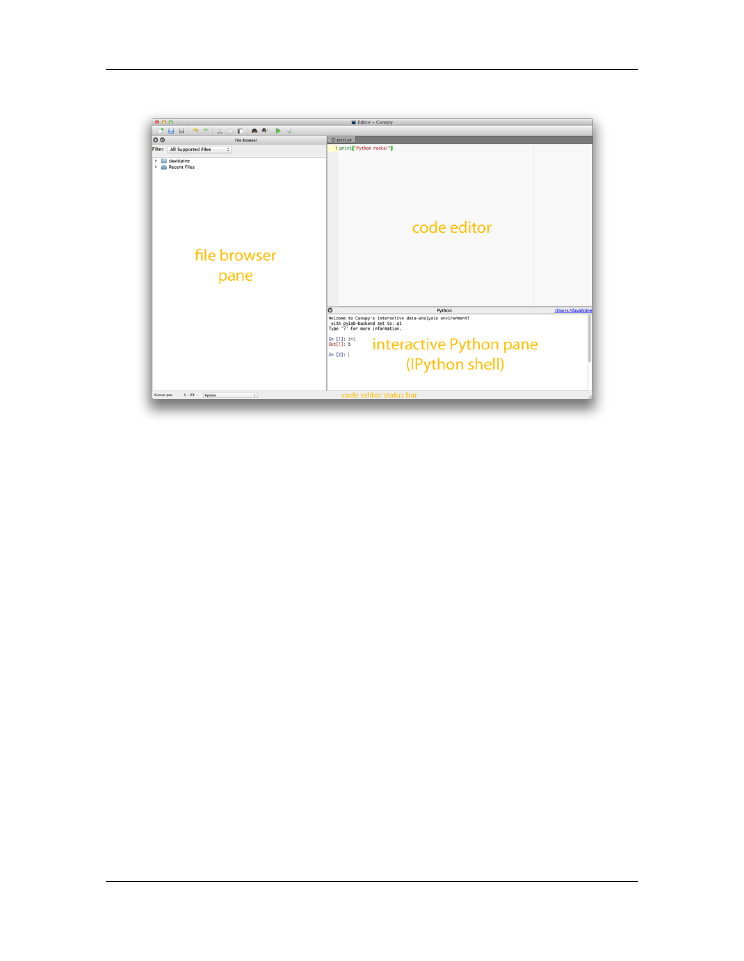
icon. The Canopy window should appear, like the one shown below. This is the
window you will generally use to work with Python.
2.2 The Canopy window
The default Canopy window has three panes: the code editor, the interactive Python pane,
and the file browser pane. The
interactive Python pane
is the primary way that you
interact with Python. You can use it to run Python computer programs, test snippets
of Python code, navigate your computer file directories, and perform system tasks like
creating, moving, and deleting files and directories. You will use the
code editor
to write
and edit Python programs (or scripts), which are simply sequences of Python commands
(code) stored in a file on your computer. The
file browser pane
allows you to navigate
your computer’s file directory system in order to view and retrieve files on your computer.
The individual panes in the Canopy window are reconfigurable and detachable but we
will leave them pretty much as they are for now. However, you may want to adjust the
overall size of the window to suit your computer screen. You can find more information
5
Introduction to Python for Science, Release 0.9.23
Figure 2.1: Canopy window
about Canopy in the
Documentation Browser
, which you can access through the
Welcome
to Canopy
window.
2.3 The Interactive Python Pane
The default input prompt of the interactive Python pane looks like this:
In [1]:
This means that Canopy is running a particular version or “shell” of interactive Python
called
IPython
. The IPython shell has been specifically designed for scientific and engi-
neering use. The standard Python interactive shell uses the prompt
>>>
. You can pretty
much do everything you want to do with either shell, but we will be using the IPython
shell as we want to take advantage of some of its special features for scientific computing.
By typing short commands at the prompt, IPython can be used to perform various system
tasks, such as running programs and creating and moving files around on your computer.
This is a different kind of computer interface than the icon-based interface (or “graphical
user interface” GUI) that you usually use to communicate with your computer. While
6
Chapter 2. Launching Python


Introduction to Python for Science, Release 0.9.23
it may seem more cumbersome for some tasks, it can be more powerful for other tasks,
particularly those associated with programming.
Before getting started, we point out that like most modern computer languages, Python is
case sensitive
. That is, Python distinguishes between upper and lower case letters. Thus,
two words spelled the same but having different letters capitalized are treated as different
names in Python. Keep that in mind as we introduce different commands.
2.3.1 Magic Functions
IPython features a number of commands called “magic” commands that let you perform
various useful tasks. There are two types of magic commands, line magic commands that
begin with
%
—these are executed on a single line—and cell magic commands that begin
with
%%
—these are executed on several lines. Here we will concern ourselves only with
line magic commands.
The first thing to know about magic commands is that you can toggle (turn on and off) the
need to use the
%
prefix for line magic commands by typing
%automagic
. By default,
the
Automagic
switch is set to
ON
so you don’t need the
%
prefix. To set
Automagic
to
OFF
, simply type
%automagic
at the IPython prompt. Cell magic commands always
need the
%%
prefix.
In what follows below, we assume that the
Automagic
switch is set to
ON
so we omit
the
%
sign.
Navigation Commands
IPython recognizes several common navigation commands that are used under the
Unix/Linux operating systems. In the IPython shell, these few commands work on Macs,
PCs, and Linux machines.
At the IPython prompt, type
cd ~
(
i.e.
“
cd
” – “space” – “tilde” , where tilde is found
near the upper left part of most keyboards). This will set your computer to its home
(default) directory. Next type
pwd
(
p
rint
w
orking
d
irectory) and press RETURN. The
console should return the path of the current directory of your computer. It might look
like this on a Mac:
In [2]:
pwd
Out[2]:
u’/Users/pine’
or this on a PC:
2.3. The Interactive Python Pane
7

Introduction to Python for Science, Release 0.9.23
In [3]:
pwd
Out[3]:
C:\\Users\\pine
Typing
cd ..
(“
cd
” – “space” – two periods) moves the IPython shell up one directory
in the directory tree, as illustrated by the set of commands below.
In [4]:
cd
..
/Users
In [5]:
pwd
Out[5]:
u’/Users’
The directory moved up one from
/Users/pine
to
/Users
. Now type
ls
(
l
i
s
t) and
press
RETURN
. The console should list the names of the files and subdirectories in the
current directory.
In [6]:
ls
Shared/
pine/
In this case, there are only two directories (indicated by the slash) and not files. Type
cd
~
again to return to your home directory and then type
pwd
to verify where you are in
your directory tree. [Technically,
ls
isn’t a magic command, but typing it without the
%
sign lists the contents of the current directory, irrespective of whether
Automagic
is
ON
or
OFF
.]
Let’s create a directory within your documents directory that you can use to store your
Python programs. We will call it
PyProgs
. First, return to your home directory by typing
cd ~
. To create directory
PyProgs
, type
mkdir PyProgs
(
m
a
k
e
dir
ectory). Type
ls
to confirm that you have created
PyProgs
and then type
cd PyProgs
to switch to
that directory.
Now let’s say you want to return to the previous subdirectory,
Documents
or
My
Documents
, which should be one up in the directory tree if you have followed along.
Type
cd ..
and then type
pwd
. You should find that you are back in the previous direc-
tory,
Documents
or
My Documents
. If you type
ls
, you should see the new directory
PyProgs
that you just created.
More Magic Commands
The most important magic command is
%run
filename
where
filename
is the name of a
Python program you have created. We haven’t done this yet but include it here just for
reference. We will come back to this later.
8
Chapter 2. Launching Python

Introduction to Python for Science, Release 0.9.23
Some other useful magic commands include
%hist
, which lists the recent commands
issued to the IPython terminal, and
%edit
, which opens a new empty file in the code
editor window. Typing
%edit
filename
, will open the file
filename
if it exists in the
current directory, or it will create a new file by that name if it does not, and will open it as
a blank file in the code editor window.
There are a number of other magic commands. You can get a list of them by typing
lsmagic
.
In [7]:
lsmagic
Available line magics:
%alias
%alias_magic
%autocall
%automagic
%bookmark
%cd
%clear
%colors
%config
%connect_info
%debug
%dhist
%dirs
%doctest_mode
%ed
%edit
%env
%gui
%guiref
%hist
%history
%install_default_config
%install_ext
%install_profiles
%killbgscripts
%less
%load
%load_ext
%loadpy
%logoff
%logon
%logstart %logstate
%logstop
%lsmagic
%macro
%magic
%man
%more
%notebook
%page
%pastebin
%pdb
%pdef
%pdoc
%pfile
%pinfo
%pinfo2
%popd
%pprint
%precision
%profile
%prun
%psearch
%psource
%pushd
%pwd
%pycat
%pylab
%qtconsole
%quickref
%recall
%rehashx
%reload_ext
%rep
%rerun
%reset
%reset_selective
%run
%save
%sc
%store
%sx
%system
%tb
%time
%timeit
%unalias
%unload_ext
%who
%who_ls
%whos
%xdel
%xmode
Available cell magics:
%%!
%%bash
%%capture
%%file
%%javascript
%%latex
%%perl
%%prun
%%pypy %%python
%%python3
%%ruby
%%script
%%sh
%%svg
%%sx
%%system
%%timeit
Automagic is ON, % prefix IS NOT needed for line magics.
There are a lot of magic commands, most of which we don’t need right now. We will
introduce them in the text as needed.
2.3.2 System shell commands
You can also run system shell commands from the IPython shell by typing
!
followed by
a system shell command. For Macs running OSX and for Linux machines, this means that
Unix (or equivalently Linux) commands can be issued from the IPython prompt. For PCs,
this means that Windows (DOS) commands can be issued from the IPython prompt. For
example, typing
!ls
(
l
i
s
t) and pressing RETURN lists all the files in the current directory
on a Mac. Typing
!dir
on a PC does essentially the same thing (note that system shell
commands in Windows are
not
case sensitive).
2.3. The Interactive Python Pane
9