ВУЗ: Не указан
Категория: Не указан
Дисциплина: Не указана
Добавлен: 17.04.2021
Просмотров: 1372
Скачиваний: 2

26
Verify response time
Verifying the response time is often important. A slow API is a problem
waiting to emerge. Customers will probably start to complain when you
have a lot of traffic and they don’t get their response quickly enough.
Let’s prepare for this by requiring the service to respond within 1 sec-
ond.
¿
Add a new assertion.
¿
Select “SLA” and “Response SLA.”
¿
Add it.
¿
Specify the desired response time. The default value is 200 as
in 200 ms. We want to allow one second, so set the new value
to 1000 ms and press “OK.”
Adding a minimum response time like this is easy. A more difficult prob-
lem may be to actually deliver such short response times. But that is not
our current focus; we are just verifying that the service is fast enough.
Verify schema compliance
APIs should follow their own schema definition. We used the schema
definition when we created the request to the service. We need to add
verification if we want to be sure that the response follows the schema it
should be following.
¿
Add a new assertion
¿
Select “Compliance, Status and Standards”
¿
Select “Schema Compliance”
¿
Add it
¿
Define the schema, the response should follow. The suggested
schema is the same schema as we used to create the service.
This is the schema we want to use in this example.
¿
Click “OK.”

27
All requests now have to follow its schema definition. If they don’t, the
test will fail. This is great if we want to catch a bug introduced to the
service.
Many more tests can obviously be added, but the ones I have added
here should get you started.
Go pro: Point and click testing
SoapUI Pro has been extended to support pointing and clicking when
you create tests or add assertions. This is a real time saver and is
something you will really appreciate when you are working under time
constraints.
Creating an XPath assertion can be tricky when you need to get the cor-
rect data. It is very easy to do using SoapUI Pro where you can click on
the data element in the response and get a proper XPath for it.
SoapUI Pro also makes moving data from a response to the next
request easy by assisting with the XPath expression you want to use to
retrieve the correct data.
Verify a range
Let’s revisit verifying that the response is within a certain range. We
did that by writing an XPath validation manually. SoapUI Pro has
implemented a wizard that will remove a lot of the details you have to
remember and allow you to focus on the actual problem: verifying that
the conversion rate between Euro and US Dollar is larger than one.
¿
Add a new assertion.
¿
Select “Property Content.”
¿
Select “XPath Match.”
¿
Add it.
¿
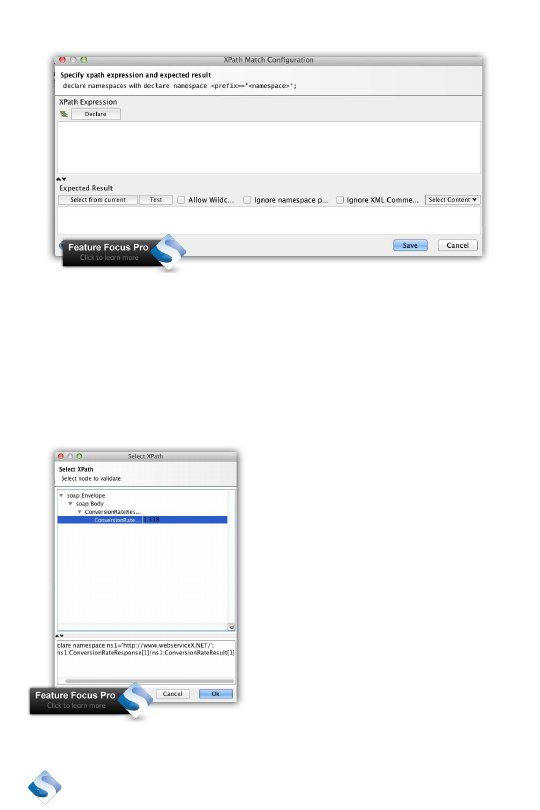
Click on the small node selector to the left of the “Declare”
button.
28
Select the node you are interested in verifying. An XPath expression will
be created for you and will locate that specific element. This is a read
only field.
¿
Click “OK.”
¿
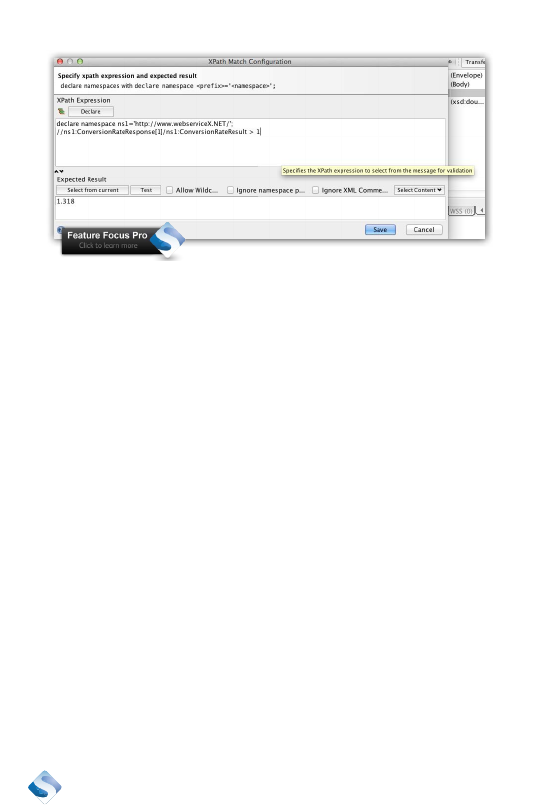
Change the XPath created for you from
//ns1:ConversionRateResponse[1]/
ns1:ConversionRateResult[1]
to
//ns1:ConversionRateResponse[1]/
ns1:ConversionRateResult > 1
29
¿
Click “Select from current” and notice that the “Expected Result”
area gets set to true.
¿
Run the test by clicking the “Test” button. It should be a success.
¿
Save the test.
We just added the same verification, but we didn’t have to understand or
know how to write the XPath to locate the value we wanted to verify.
Spending less time writing XPath expressions and more time focusing
on what really needs to be tested is a good reason for going pro.
Data driven testing
Verifying an API using different test data is common. A service should
perhaps be able to translate between many different currencies. Verify-
ing each combination by hand can very quickly be too much to cope
with.
SoapUI doesn’t have any built in support for reading test data from
a source and using it as a parameter to a test. It is possible to imple-
ment using a Groovy script that reads from the data source and passes
parameters to a test case. This is, unfortunately, out of scope for an
introduction to SoapUI, so it will not be covered here.

30
Another solution is to use SoapUI Pro that has support for reading from
a data source and passing the result to a test case out of the box.
Go pro: Data source out of the box
Setting up a test to use a data source is available out of the box for
SoapUI Pro. The setup is done in the following steps:
¿
Create a data source.
¿
Create a test that uses values from the data source.
¿
Add a loop to iterate over the values found in the data source.
Let’s add a data source to our example.
Create a data source
The data source is created as a test step. We need some kind of data
before we can make any use of it. SoapUI Pro supports these types of
data sources:
¿
Data connection – connect to a data source and use SQL to
extract your test data
¿
Directory – read a set of files from a directory and use their
content as test data
¿
Excel – read an Excel sheet and use its content as test data
¿
File – read a separated file and use as test data
¿
Grid – define a grid in SoapUI Pro that will hold all test data
¿
Groovy – create a Groovy script that generates the test data
¿
JDBC – connect a data source and use SQL to extract the test
data. This one is very similar to the Data connection above
¿
XML – read test data using XPath expressions
I want to keep it simple, yet useful, so I will use a comma-separated text
file where each row will be test data for one test.