ВУЗ: Не указан
Категория: Не указан
Дисциплина: Не указана
Добавлен: 17.04.2021
Просмотров: 1371
Скачиваний: 2
36
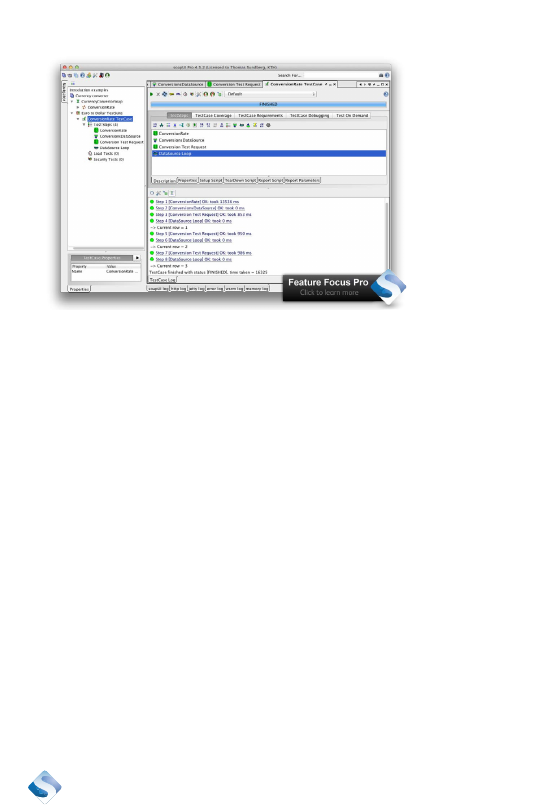
Eight steps were executed. The first was our previous test step, the
second read the data source, the next executed the test request, and
the fourth read the next value from the data source. The last two steps
where repeated until all rows in the data source were read.
Try adding one more row in the file test-data.txt and execute the test
case again. I added USD, EUR. Adding one row resulted in one more
test case that was executed. Verifying more combinations is just a mat-
ter of adding them to the data source file.
Further exploration
A simple file was used as a data source in this case. It is common to
have other data sources. Many of them can be connected out of the box
with SoapUI Pro.
Debugging
Writing a test perfectly the first time is difficult. Debugging and testing
are common activities that you usually will spend some time doing until
the test you are creating is perfect, or at least good enough.

37
Manual
Problem: You have a test suite with some steps, and you are not sure
that the steps are correct.
Solution: Disable all steps, except the first step. Rerun the suite and
verify the outcome. When the first step delivers the expected result,
enable the next step. Adding one step at a time, in a controlled way, is a
great way to build up confidence for the suite.
A general problem-solving technique to debug anything is half-interval
search4. You remove half of the steps and check to see if the problem
you are trying to locate is present. If it isn’t, then you know that your
problem is in the other half. Dividing the steps into smaller and smaller
parts will eventually, often quite soon, tell you exactly where the problem
is.
Go pro: Test debugging
Easily follow your test flows step by step, and improve the quality of
your tests with Test Debugging. There are times when you want to
examine the behavior of your tests in detail – this is called debugging.
If you suspect errors in your tests or the services you’re testing, Test
Debugging will help you diagnose it. With the debugging support, you
can execute your TestSteps step by step. Alternatively you can add
breakpoints and then run the test to those set breakpoints and view the
current value of the SoapUI properties. The Test Debugging Interface
simplifies following Test Flow, Variables, Properties, Requests, Context,
and much more, making test creation and improvement more stream-
lined.
4 http://en.wikipedia.org/wiki/Binary_search_algorithm

38
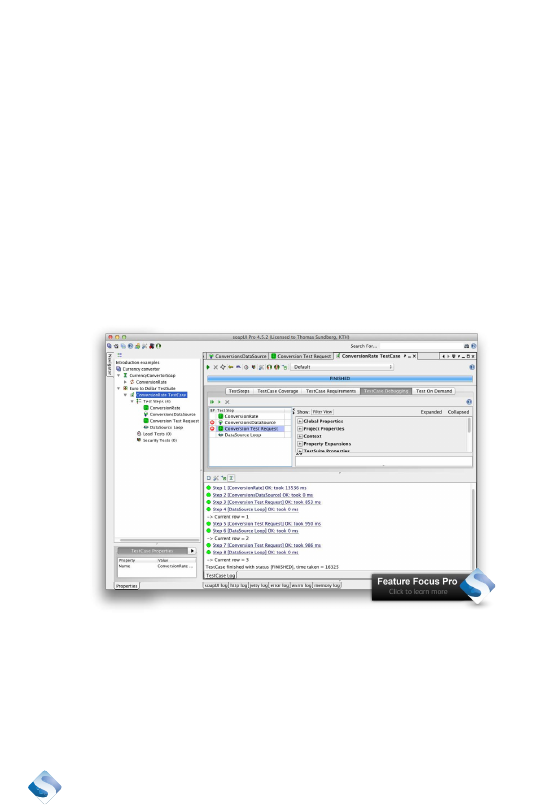
Let’s walk through a small debugging session to show how it can be
done using SoapUI Pro.
¿
Double click on the “ConversionRate TestCase” in the Navigator.
¿
Select “TestCase Debugging” in the test case editor to the right.
¿
The steps are now listed and can be executed by clicking on the
small, green arrow above the test step list. Doing so now will
execute them in a sequence. You must add breakpoints to be
able to step through them.
¿
Add breakpoints. Click just to the left, in the column named BP,
of each test step. That will toggle a breakpoint on or off. Set
breakpoints on all steps.
¿
Run the tests and notice that the execution stops at each
breakpoint.
¿
The current step is indicated with a small, green arrow, just to
the right of the step name.
¿
Click on the solid green arrow to run one step at a time.

39
Debugging a simple case like this may not be very interesting, but it
prepares you for more complicated cases.
Debugging test is only available in SoapUI Pro and is a good reason for
going pro.
Multiple environments
The test you have created should be possible to use for a system test
environment as well as an acceptance test environment. The only thing
you should change is the address, also known as the endpoint, to the
server where the system is hosted.
Change the target environment
The environment you test against is defined in the service endpoints.
Change it like this:
¿
Double click on the Service definition,
“CurrencyConverterSoap.”
¿
Select the “Service Endpoints” tab.
¿
Click on the endpoint you want to change in the list and change
the address.
http://www.webservicex.net/CurrencyConvertor.asmx
webservicex.net/CurrencyConvertor.asmx
if you want to test the same
service on the host acc-www.
¿
Press enter when you are done with your change.
¿
Execute the test step. My execution failed, there is no host
called acc-www.webservicex.net
It is possible to use properties to define the endpoint, and this could be
another way of setting the service endpoints in such way that they are
fast to change. More information about this is available on soapui.org5
5 http://www.soapui.org/Functional-Testing/structuring-and-running-tests.html
40
Go Pro: Multi-Environment Support
If you’re testing different environments, such as Staging and Production,
this feature will be a major time-saver. Manually changing all the differ-
ent connections and end-points of your tests when you need to switch
environment is cumbersome. With SoapUI Pro you can choose which
environment you want to apply through a simple drop-down menu.
SoapUI Pro then automatically changes the necessary parts of your
tests to enable it to run in the new environment. All that’s needed is a
one-time setup of your different environments, and you are good to go.
Let’s walk through an example on how you can set up different environ-
ments so you can switch between them quickly.
¿
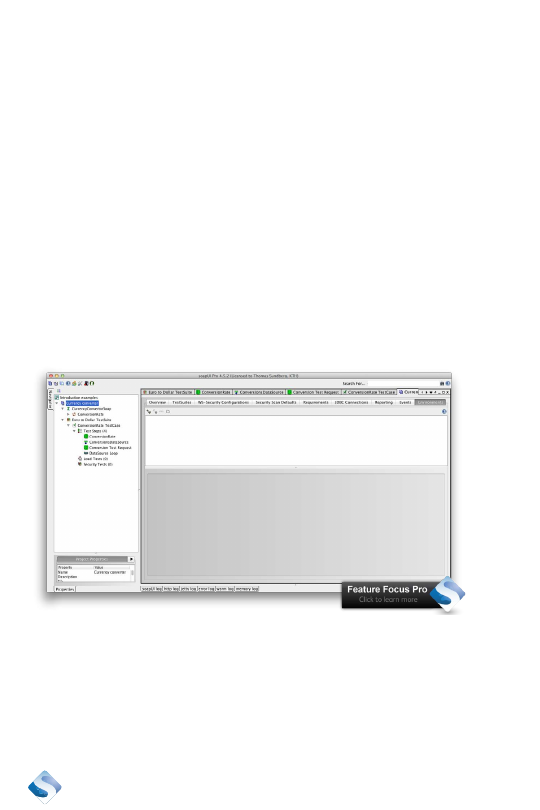
Double click on the project.
¿
Select the “Environments” tab to the far right.
¿
Click on the small +-sign to add a new environment.
¿
Name it “Acceptance.”
¿
Keep the default values and do not copy from the test case. We
will add a good endpoint manual in a short while.
¿
Click “OK.”