ВУЗ: Не указан
Категория: Не указан
Дисциплина: Не указана
Добавлен: 17.04.2021
Просмотров: 1368
Скачиваний: 2
31
Create a text file with this content:
EUR, USD
EUR, GBP
SEK, PLN
I saved it as test-data.txt. This will be our first data source. Our goal is
to iterate through it and verify that we get conversion rates for the three
different cases.
The next step is to connect to it.
¿
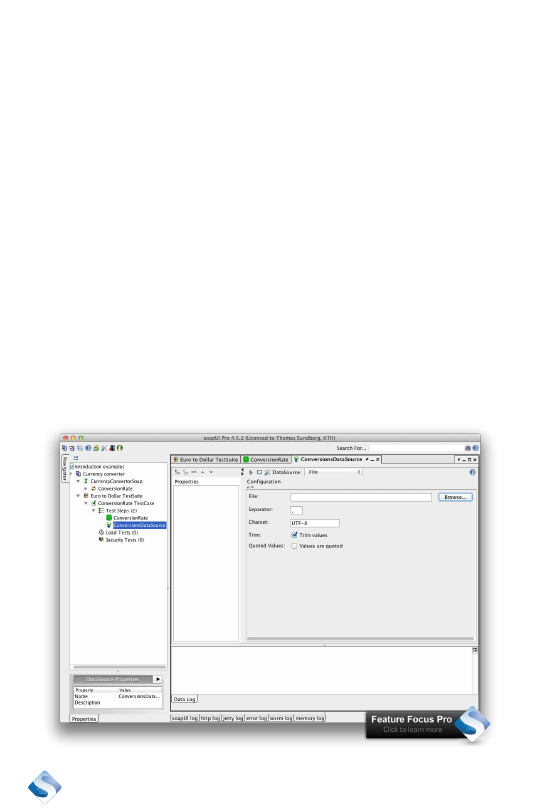
Add a new test step to the test steps, select the type
“DataSource.”
¿
Specify a name for it, I used ConversionsDataSource.
¿
Define the type of Data source in the drop down DataSource.
Select “File.”
32
¿
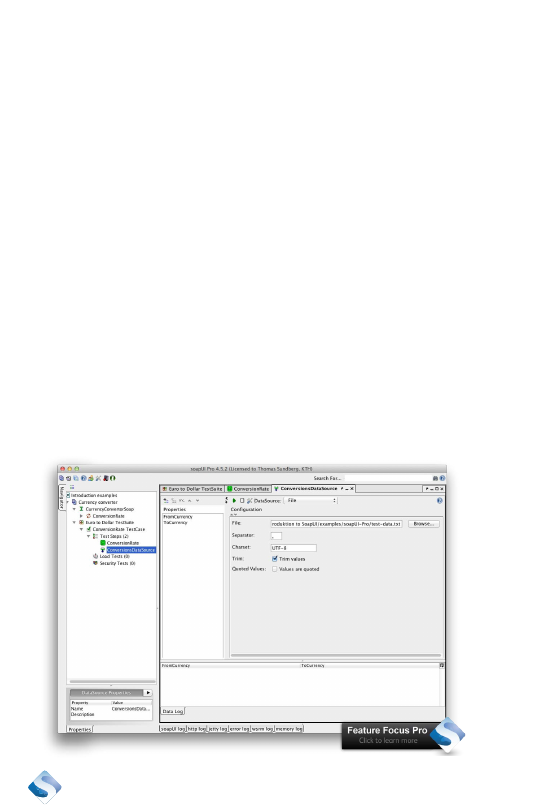
Browse to the file you just created and select it.
¿
The default setting is that the file will be comma-separated,
leave that as it is.
¿
The default value for “Charset” is also ok.
¿
The checkbox Trim values is set and that is also something
we want to keep. The values we read from the file should be
stripped of whitespace, EUR should be read without the spaces
surrounding it.
¿
Our values are not quoted, so leave that checkbox unset.
¿
Name the two columns in the data source. Click on the +-sign in
“Properties” editor to the left.
¿
Call the first property “FromCurrency” to indicate that the first
column in our test data file will be the currency we want to get
the conversion from.
¿
Call the next column “ToCurrency” to indicate that the second
column in the test data file is the currency we want to get the
conversion to.

33
This is all we want to set for our data source. Next step is to use it in a
test case.
Create a test with parameters
The test step is similar to the one we have created before. The only ac-
tual difference will be that instead of defining the currencies, we will use
variables. These variables will be set with values from the data source
and we will get many different tests. This is how to do it:
¿
Add a new test step to test steps, select the type “Test Request”
and call it “Conversion Test Request.”
¿
Select the operation to invoke for this request. There is only one
available.
¿
Define some settings in the next dialog box.
¿
“Add SOAP Response Assertion” is selected, leave it selected. It
will verify that we actually receive a SOAP response.
¿
I leave the rest of the suggested assertions unchecked and
Click “OK.”
¿
Connect the parameters.
¿
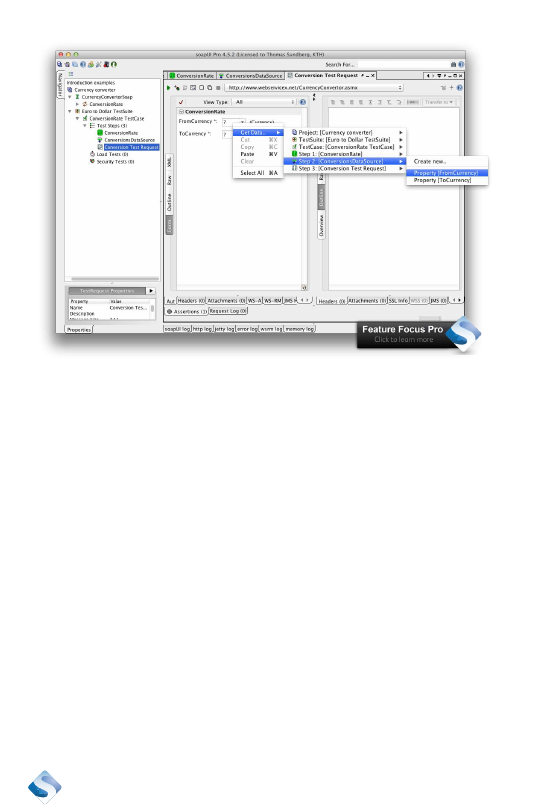
Right click on the drop-down “FromCurrency.”
¿
Select “Get Data.”
¿
Navigate to the step “ConversionDataSource.”
¿
Select “Property [FromCurrency].”
¿
Do the same for “ToCurrency.” Right click -> Get Data ->
ConversionDataSource -> Property [ToCurrency].
That was all we had to do to connect the data source with the test case.
Next step is to iterate, or loop if you want, over the data source, so we
can execute the test case for each row that is found in the data source.
34
Loop over the data source
Iterating over the data source is done using a DataSource Loop.
¿
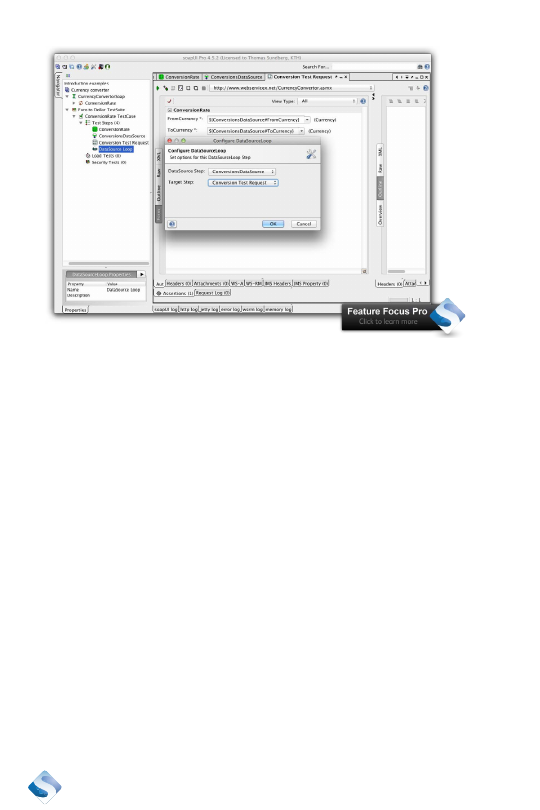
Add a new test step to test steps, select the type “DataSource
Loop” and call it “Conversion DataSource Loop.”
¿
Double click on the new test step to bring up the editor where
we can define which step to use as the data source for this loop,
and define which step will be executed.
¿
Select “ConversionDataSource” as Datasource Step.
¿
Select “Conversion Test Request” as Target Step.
¿
Click “OK.”
The data source and the test request have been connected. The next
step is to execute a test run and verify that we send three different
requests and get valid answers back.
35
Execute the test case
We have prepared a test case. Let’s execute it and see if we get some-
thing interesting.
¿
Double click on the “ConversionRate TestCase” to bring up the
TestCase overview.
¿
The test steps should be listed for execution.
¿
Click on the small green arrow in the left, upper corner, to
execute the steps.